

Set up your organization
Find your organization's name and plan in Settings, and invite your team if your plan supports it.
Every Re:InvestorHub account belongs to an organization. It’s created for you when you sign up, and it’s where your properties, deals, and projects live, along with your team, if your plan includes one. This guide shows you where to find your organization’s details and how to invite teammates to join it.
Find your organization’s name and plan
Section titled “Find your organization’s name and plan”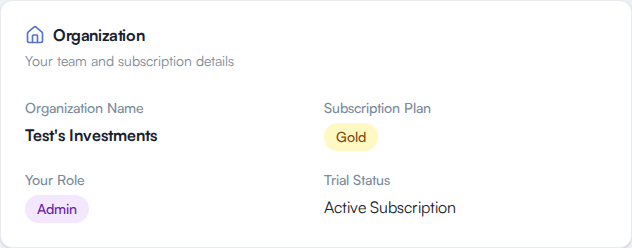
- Click Settings in the left-hand navigation.
- In the Settings page’s own left-hand menu, click Organization.
The Organization card shows:
| Field | What it shows |
|---|---|
| Organization Name | Your organization’s name. |
| Subscription Plan | Your plan: Silver or Gold. |
| Your Role | Your role in the organization: Admin, Power User, or User. |
| Trial Status | Active Trial or Active Subscription. |
Invite your team
Section titled “Invite your team”Team invitations are a Gold plan capability. Gold organizations support up to 5 users, so an admin can invite up to four more people. If your organization is on Silver, it’s set up for a single user, so there’s nothing to invite anyone into. See Plans and what’s included to compare plans.
Send an invitation
Section titled “Send an invitation”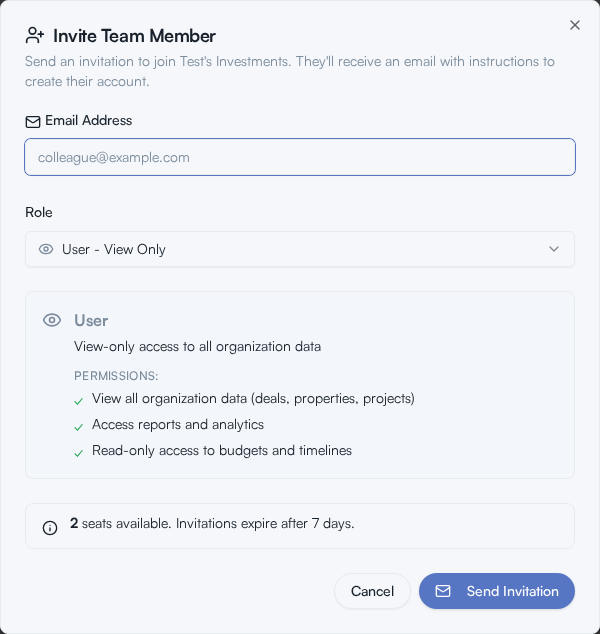
- Click Settings in the left-hand navigation, then click Team in the Settings page’s own left-hand menu.
- Under Team Seats, click Invite Member.
- In the Invite Team Member dialog, enter the person’s Email Address.
- Choose a Role: User - Can edit, can’t approve, Power User - Create & Submit, or Admin - Full Access. The card below the dropdown recaps what that role can do. See Roles explained for the full breakdown of each role.
- Click Send Invitation.
What you should see
Section titled “What you should see”A confirmation that the invitation was sent, and the invite appears under Pending Invitations with the invited email, role, who sent it, when it was sent, and when it expires.
Your teammate accepts their invitation the same way described in Accept a team invitation.
Manage pending invitations
Section titled “Manage pending invitations”From the Pending Invitations table, you can:
- Resend an invitation, which re-sends the invitation email without changing its expiration.
- Revoke an invitation. A confirmation dialog asks you to confirm, since this can’t be undone. If you revoke one by mistake, send a new invitation to the same email address.
Team members
Section titled “Team members”The Team Members table lists everyone active in your organization, with their role. The organization’s original owner is marked with an Owner badge.
- Roles explained: what Admin, Power User, and User can each do.
- Plans and what’s included: compare Silver and Gold, including team size.