

Check comps and set ARV
Look up recently sold homes and similar active listings near a property in Deal Analyzer, and use one of them to fill in your After Repair Value.
Comps (comparable homes) show what similar properties near your deal sold or are listed for. In Deal Analyzer you can load them next to your numbers and, with one button, copy a price into your After Repair Value (ARV).
Load the comps
Section titled “Load the comps”In the sidebar, select Deal Analyzer, then pick one of the five strategy cards.
Under Property Information, start typing the Property Address and select it from the suggestions. You can also open Deal Analyzer from a saved property with Analyze Deal in My Prospects, which fills in the address for you.
The button sits in a different place depending on the strategy.
| Strategy | Where Check Comps is | Where the comps appear |
|---|---|---|
| Fix & Flip, BRRRR | Header of the After Repair Value (ARV) section | Directly below the ARV section |
| Wholesale | Header of the End Buyer Analysis section | Under Property Images |
| Buy & Hold, Short Term Rental | Header of Property Information | Under Property Images |
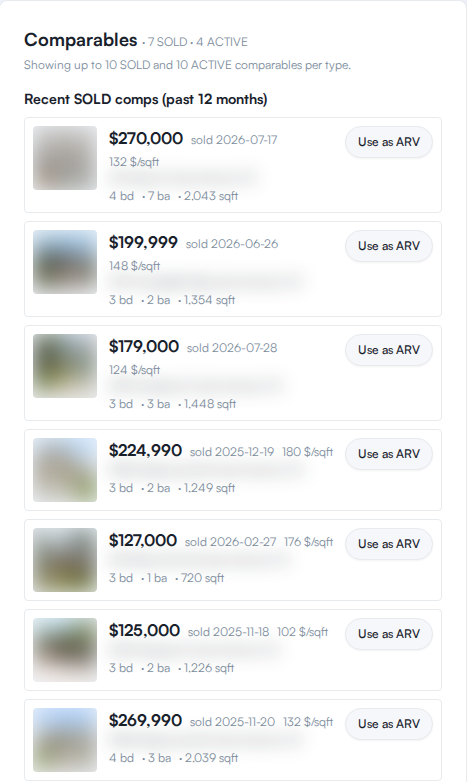
The page scrolls to the Comparables section.
Read a comp
Section titled “Read a comp”Each comp is a card with a photo (when there is one), a price, the address, and the basics.
- Price. For a sold comp, the sale price and the line “sold” plus the date. For an active listing, the list price. Price per square foot appears when the square footage is known.
- Beds, baths, square feet and year built, when available.
- Differences from your property. Active listings can show small badges such as “+5% price”, “+3% sqft” or “-12 yr”, which compare the listing to your property.
- Est. value · not a list/sold price. Some nearby homes are not for sale and have no sale price. They show an estimated value with this badge. It is an automated estimate, so treat it as a rough guide.
- A warning icon next to a sold price means the price looks unusual, such as a sale price far from its list price. Check it before relying on it.
Sold comps cover the past 12 months within about 1 mile of the property. If there are none, you see “No SOLD comps within 1 mile in the lookback window.” For active listings with no match, you see “No similar active listings found.”
Use a comp as your ARV
Section titled “Use a comp as your ARV”Find the comp whose finished condition and size match what your property will be after repairs.
The button is on the right of the comp’s card.
Where the value lands depends on the strategy:
- Fix & Flip and BRRRR: the ARV (After Repair Value) field.
- Wholesale: the After Repair Value (ARV) field in End Buyer Analysis. It is your buyer’s ARV, and applies to all three buyer strategies (Fix & Flip, BRRRR and Buy & Hold).
- Buy & Hold and Short Term Rental: there is no ARV field, so the comps have no Use as ARV button. They are there for reference.
You can type over the ARV at any time. If you change it after analyzing, select Re-Analyze Deal to update the results.
If something goes wrong
Section titled “If something goes wrong”- Check Comps is greyed out. Select the address from the suggestions in Property Address. Typing the address without selecting a suggestion is not enough.
- “Could not load comparables. Try clicking “Check Comps” again.“ Select Check Comps again.
- A comp has no price. Selecting Use as ARV shows “No price on this comp, cannot use as ARV.” and the button is disabled when a comp has no price at all.