

Analyze a wholesale deal
Enter your contract price, assignment fee and costs in Deal Analyzer, model your end buyer's numbers, and see your profit and Deal Grade.
Use the Wholesale strategy when you plan to put a property under contract and assign that contract to an end buyer for a fee. There is no financing or rehab for you to enter. Instead you enter your deal and model what your buyer would experience. The steps every strategy shares are in Run the numbers.
What you need
Section titled “What you need”| Fields | |
|---|---|
| Required | Property Address, City, State, ZIP Code, Contract Price (with Seller), Assignment Fee |
Required fields have a red asterisk, and Analyze My Deal stays disabled until they are filled in. If some fields are missing, you see Score withheld instead of a Deal Score, with a banner listing what to add.
Enter your wholesale deal
Section titled “Enter your wholesale deal”In Deal Analyzer, under Select Your Investment Strategy, select Wholesale, then pick the property address under Property Information.
In Property Information, Property Condition and Seller Motivation are free-text notes for your own reference.
Enter the Contract Price (with Seller) and your Assignment Fee, the fee you earn for assigning the contract. A Total Price to End Buyer line adds the two together. Enter your Earnest Money Deposit and Est. Days Under Contract.
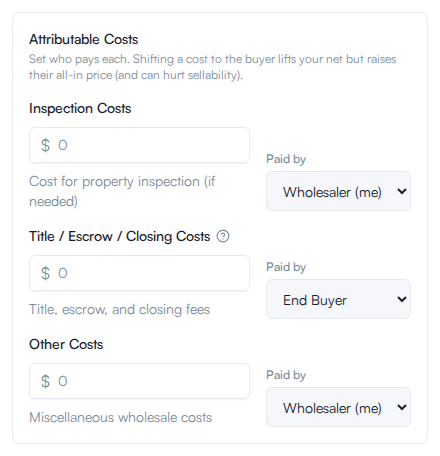
Enter Marketing Costs, which are always paid by you. For Inspection Costs, Title / Escrow / Closing Costs and Other Costs, enter the amount and choose who pays it from Paid by: Wholesaler (me) or End Buyer. Inspection and other costs start as yours, and title, escrow and closing costs start as the buyer’s.
The Hide Assignment Fee from Buyer Report toggle is on by default, with the note “Buyer will only see total price”. Turn it off to produce a copy that shows your fee and profit. This affects the PDF you export, not the numbers on screen.
Under End Buyer Analysis, choose the Buyer’s Investment Strategy: Fix & Flip, BRRRR or Buy & Hold. Enter an Estimated Rehab Cost, the After Repair Value (ARV), and the Buyer’s Down Payment %. For BRRRR and Buy & Hold, also enter an Expected Monthly Rent. Check Comps is in this section’s header, and Use as ARV fills the buyer’s ARV (Check comps and set ARV).
The button is in the results column on the right.
Read the results
Section titled “Read the results”The Your Profit card shows:
- Assignment Fee.
- Net Profit: your fee after the costs you pay.
- ROI.
- Capital at Risk: your earnest money plus the costs you pay, which is what you lose if the deal dies. Earnest money is returned at closing, so it is not counted as an expense.
- Deal Grade: a letter grade with a short label, shown below the Deal Score and in addition to it. It is a separate read on the wholesale deal. For how to use it, see Deal Score.
Under the grade, a message tells you whether your fee leaves the deal sellable. It shows the largest fee that keeps the deal sellable, tells you to reduce your fee or renegotiate the contract price if you are over it, or tells you to renegotiate with the seller if the contract price is too high to assign at all. A reminder follows it: verify that assignment is permitted in your market, because wholesaling rules vary by state.
Below, a Wholesale Deal Breakdown lists the contract price, assignment fee, Total Price to Buyer, earnest money, the costs you pay and days under contract. The End Buyer Analysis card, titled with the buyer’s strategy, shows what the buyer would experience: for a flip, Buyer’s Total Investment, Buyer’s Projected Profit, Buyer’s ROI and Profit Margin; for a rental strategy, the buyer’s cash flow, Cash-on-Cash ROI and Cap Rate. A Detailed Buyer Numbers section opens for the full breakdown.
The badge next to the score reads Excellent Deal, Good Deal, Fair Deal or Poor Deal.
Save the deal to your pipeline
Section titled “Save the deal to your pipeline”Select Save to Pipeline, at the top of the page or under the Deal Score. Fill in every required field first.