

Contractors
Add primary contractors and sub-contractors to a renovation project, assign them to budget items and change orders, and log what you've paid them.
Contractors live inside a renovation project, on the Team tab. From there you can add a primary contractor or project manager, add sub-contractors by trade, assign any of them to budget line items or change orders, and log payments as you pay them.
Add a primary contractor or project manager
Section titled “Add a primary contractor or project manager”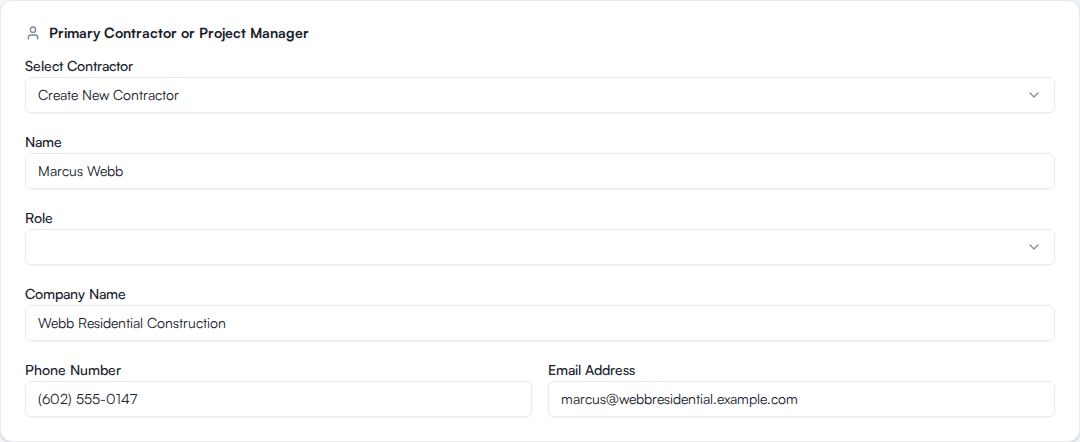
- Open your renovation project and go to the Team tab.
- In the Primary Contractor or Project Manager section, fill in a name.
- Optionally set a Role (Primary Contractor or Project Manager), Company Name, Phone Number, and Email Address.
If your organization already has a saved contractor with a primary role, a Select Contractor dropdown appears above the form so you can reuse them instead of typing the details again.
Add sub-contractors
Section titled “Add sub-contractors”- On the Team tab, find the Sub-Contractors section and click Add Sub-Contractor.
- Choose a Trade/Specialty from the dropdown (Electrician, Plumber, HVAC, Carpenter, and similar trades), or pick Custom and type your own.
- Fill in Company Name, Contact Name, Phone Number, and Email Address.
- Repeat for each sub-contractor. Click the x on a sub-contractor’s card to remove it.
If your organization has saved contractors already, each sub-contractor card also offers a Select Existing Contractor dropdown so you can fill the row from a saved record instead of retyping it.
What information is tracked
Section titled “What information is tracked”For each contractor, Re:InvestorHub tracks:
- Name (or contact name, for sub-contractors)
- Company name
- Trade or specialty (sub-contractors), or role (primary contractor / project manager)
- Phone number
- Email address
There’s no field for licenses, insurance, or freeform notes on a contractor record, so keep that information elsewhere if you track it.
Assign a contractor to work
Section titled “Assign a contractor to work”You can point specific budget items and change orders at a contractor:
- Budget line items. On the Budget tab, in Detailed budget mode, each line item has an Assigned Contractor field. Click it and choose a contractor from the list, or select Create New Contractor to add one without leaving the budget item.
- Change orders. When you create or edit a change order, an Assigned Contractor field lets you pick from the contractors already on the project.
There’s no separate task board for contractors. Assigning one to a budget item or change order is how you record who’s doing that piece of work.
Log a payment
Section titled “Log a payment”Payments are tracked per budget line item, not as standalone invoices.
- On the Budget tab, in Detailed budget mode, find the line item you paid against and click Log Payment.
- Enter the Payment Amount, choose a Payment Method (Check, ACH/Bank Transfer, Credit Card, Cash, or Other), and pick the Payment Date.
- Under Paid To, choose the contractor you paid, or select Other (manual entry) to type a name.
- Optionally fill in Payment For (for example, “Deposit” or “Draw 1”) and Notes.
- Click Log Payment to save it.
If your project uses Simple budget mode instead of Detailed, payments work the same way against the project’s single total budget, and past payments appear in a Payment History table you can click into to edit or delete.
Remove a contractor
Section titled “Remove a contractor”Click the trash icon next to a contractor (on the Team tab, or in the Assigned Contractor list on a budget item) to delete it. Deleting a contractor removes it from your organization’s contractor list permanently and clears it from any budget line items it was assigned to. This can’t be undone.
Roles and who can do this
Section titled “Roles and who can do this”Adding, assigning, and paying contractors follows the same organization roles as the rest of a project. See Roles explained for what each role can do.