

Reports and exports
Generate the reports in Re:InvestorHub and export a deal you've analyzed as a PDF.
Reports pulls your properties, deals, and renovation projects into a set of ready-to-read summaries you can view on screen and download as a PDF. Separately, Deal Analyzer can export any deal you’ve analyzed as its own branded PDF. This page covers both.
Open Reports
Section titled “Open Reports”- In the sidebar, select Reports.
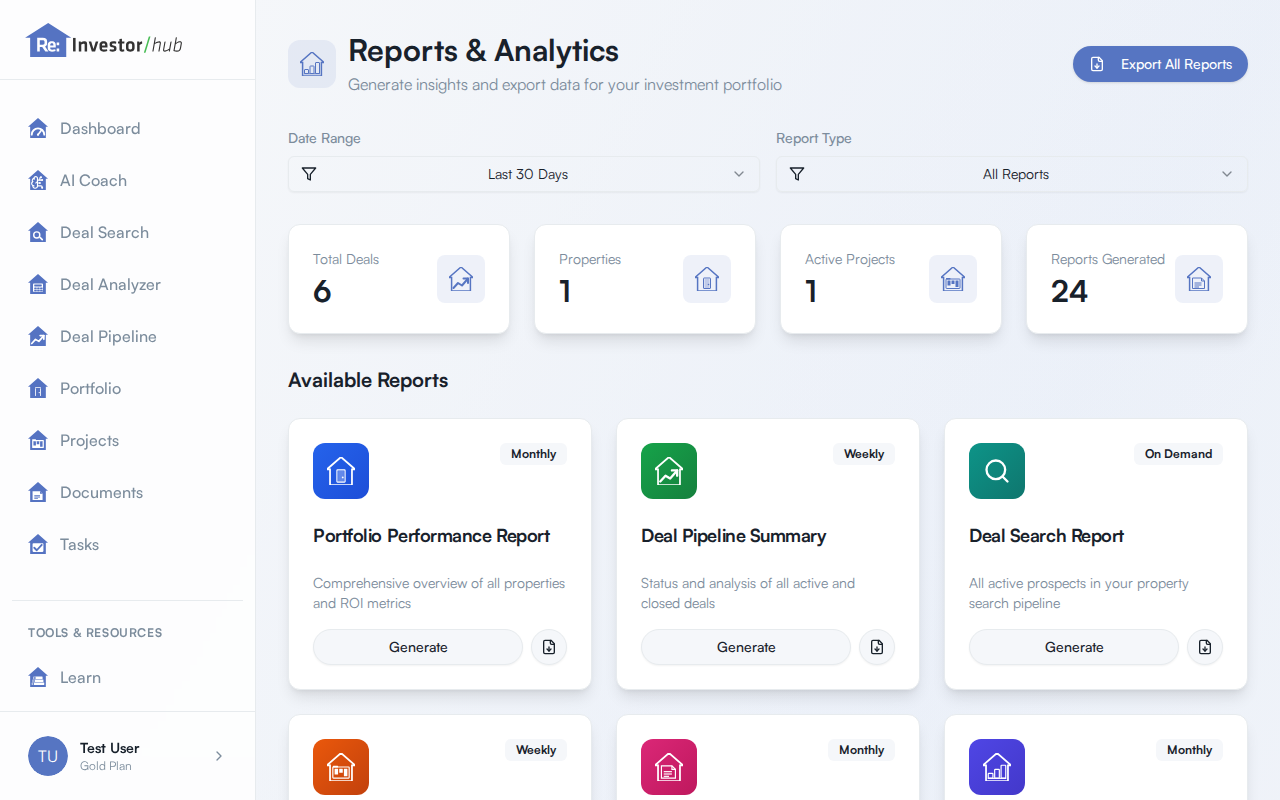
The reports available to you
Section titled “The reports available to you”| Report | What it covers |
|---|---|
| Portfolio Performance Report | Comprehensive overview of all properties and ROI metrics |
| Deal Pipeline Summary | Status and analysis of all active and closed deals |
| Project Progress Report | Renovation project status, budgets, and timelines |
| Scope of Work Report | Project scope definition and breakdown |
| Project Budget Report | Budget tracking and variance analysis |
| Change Orders Report | Scope changes and cost impacts |
These reports are the same on Silver and Gold. The plans don’t differ in which reports you can run, only in how many PDF exports you get each month; see Plans and what’s included for the full comparison.
Deal Pipeline Summary breaks your deals down by stage, including a Dead category alongside Analyzing, Make An Offer, Under Contract, and Closed. See Deal stages for what each one means.
Generate a report
Section titled “Generate a report”- On a report’s card, select Generate.
- For the Scope of Work, Project Budget, and Change Orders reports, a project selector appears at the top of the report. It defaults to All Projects; choose a specific project to scope the report to just that one.
Some reports also respect the Date Range filter near the top of the Reports page (Last 7 Days, Last 30 Days, Last 90 Days, Last Year, or All Time), including Portfolio Performance, Deal Pipeline Summary, and Project Progress. Set it before you select Generate.
Export a report as a PDF
Section titled “Export a report as a PDF”- With a report open, select Export PDF.
Export a deal as a PDF
Section titled “Export a deal as a PDF”Any deal you’ve run through Deal Analyzer, for any of its five strategies (Fix & Flip, BRRRR, Buy & Hold, Short Term Rental, or Wholesale), can be exported as its own PDF.
- Open the deal in Deal Analyzer. If you just ran the analysis, you’re already there. To export an existing deal from your Deal Pipeline, open its card menu and select Edit Deal, which opens it in Deal Analyzer.
- Once the deal has been analyzed (select Analyze My Deal or Re-Analyze Deal if you haven’t already), select Export PDF near the top of the page.
PDF export limits
Section titled “PDF export limits”PDF exports, whether from Reports or from a deal in Deal Analyzer, count against your plan’s monthly limit. Silver includes 25 PDF exports a month. Gold exports are unlimited. See Plans and what’s included for the rest of what’s included on each plan.
- See Deal stages for what each stage on the Deal Pipeline Summary report means.
- See Plans and what’s included to compare Silver and Gold.