

Notifications
Use the notification bell, learn what triggers a notification, and choose in-app and email delivery.
Notifications tell you when something needs your attention: a change order waiting for approval, a project that changed status, or a task coming due. They appear under the bell, which is on every page, and you can also receive them by email.
Open your notifications
Section titled “Open your notifications”The bell is on every page. On a computer it sits beside the logo at the top of the sidebar. On a smaller screen it is at the top right.
A red badge on the bell shows how many notifications are unread (it shows 9+ above nine). Select the bell to open the Notifications list.
Select one to mark it read and go to what it is about. Unread notifications have a blue background and a dot.
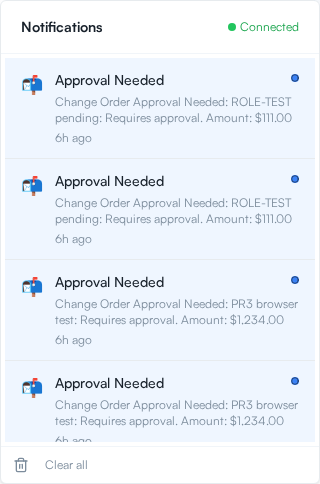
Each notification shows a title, a short message, and when it arrived. The list header shows Connected when it is live, or Reconnecting… if the connection dropped. When the list is empty it reads No notifications yet. Select Clear all at the bottom to empty the list.
What triggers a notification
Section titled “What triggers a notification”| What happened | What you get | Where it takes you |
|---|---|---|
| A change order is submitted | Change Order Approval Needed, with the title and requested amount | The project’s Change Orders tab |
| A change order is approved or rejected | Change Order APPROVED or Change Order REJECTED, with the title | The project’s Change Orders tab |
| A project’s status changes | Project Update, with the project name, new status, and health | The project |
| A task is coming due or overdue | Task Due 7D, 3D, 1D, or an overdue notice, with the task title and due date | The Tasks page |
Task reminders go out 7 days, 3 days, and 1 day before the due date, and once more when the task is overdue. They go to the person who created the task. See Manage tasks and reminders.
Choose how you are notified
Section titled “Choose how you are notified”Select Settings from the sidebar, then go to Notification Preferences.
Each row has an In-App switch and an Email switch. Changes save as soon as you flip them, with a message that your preferences were updated.
In your profile settings, choose a Daily Reminder Time for task reminders. It uses your timezone.
Rows are Task Reminders, Project Milestones, and Change Order Approvals (marked CRITICAL).