

Set up Market Watch
Create a Market Watch for a city or ZIP, describe your buy box, run a scan, and manage your watches within your plan's limits.
Market Watch keeps an eye on a market for you. You tell it where you invest and what you want to buy. It checks that market on a schedule and brings you a short list of leads to work through. This page covers creating and managing a watch. To work the leads, see Review Market Watch leads.
Add a watch
Section titled “Add a watch”In the sidebar, select Deal Search, then the Market Watch tab.
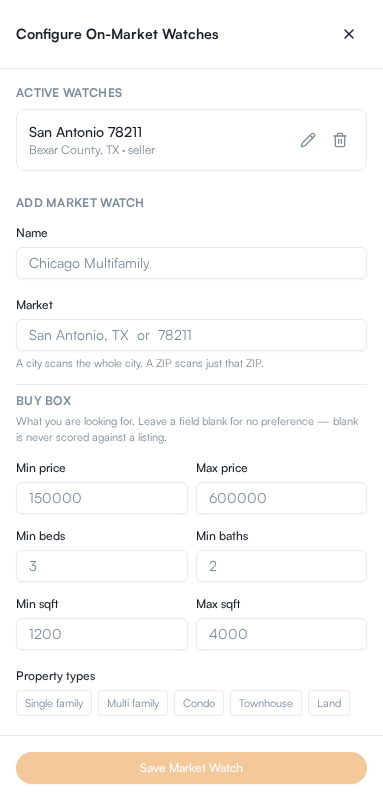
Select + add watch at the top right. If you have no watches yet, you can also select Configure Market Watch in the middle of the page. A panel opens on the right.
Enter a Name you will recognize, such as “San Antonio Rentals”.
In Market, enter a city and state, such as “San Antonio, TX”, or a ZIP code, such as “78211”. A city covers the whole city. A ZIP covers just that ZIP.
Under Buy box, enter what you are looking for: Min price, Max price, Min beds, Min baths, Min sqft and Max sqft. Leave a field blank if you have no preference.
Under Property types, select any of Single family, Multi family, Condo, Townhouse and Land. Select a type again to turn it off. Leave all of them off for no preference.
Select Save Market Watch.
Run a scan
Section titled “Run a scan”A watch scans on a schedule, and you can start a scan yourself. Each scan uses part of your allowance, so every watch has its own button and only that watch is scanned.
- With one watch, select Run Scan Now at the top right of the Market Watch tab.
- With several watches, a Watch: row appears above the table. Select the play icon next to a watch’s name to scan that one.
While a scan runs, a notice names the watch being scanned. You can leave the page, and the results appear when it finishes.
Remove a watch
Section titled “Remove a watch”In the watch panel, select the trash icon on the watch. A dialog asks you to confirm the removal and says it will stop scanning that market. Select Remove to confirm, or Cancel to keep the watch.