

Attach documents and notes
Upload property photos and files to a deal, note how you arrived at your numbers, and find everything again later in Documents.
Every deal gets its own folder for files the moment you save it, so contracts, inspection reports, and photos stay with the deal instead of scattered across your inbox and downloads folder. There are two upload paths depending on what you’re adding: photos go on the deal itself in Deal Analyzer, and everything else goes through Documents.
Add photos to a deal
Section titled “Add photos to a deal”- Open the deal in Deal Analyzer. From your Deal Pipeline, open the card’s menu (the three-dot icon) and select Edit Deal.
- Scroll to the Property Images section.
- Select Upload Images, or drag image files onto the drop zone.
Property Images accepts image files only, up to 10MB per file and up to 10 images per deal.
Store other documents
Section titled “Store other documents”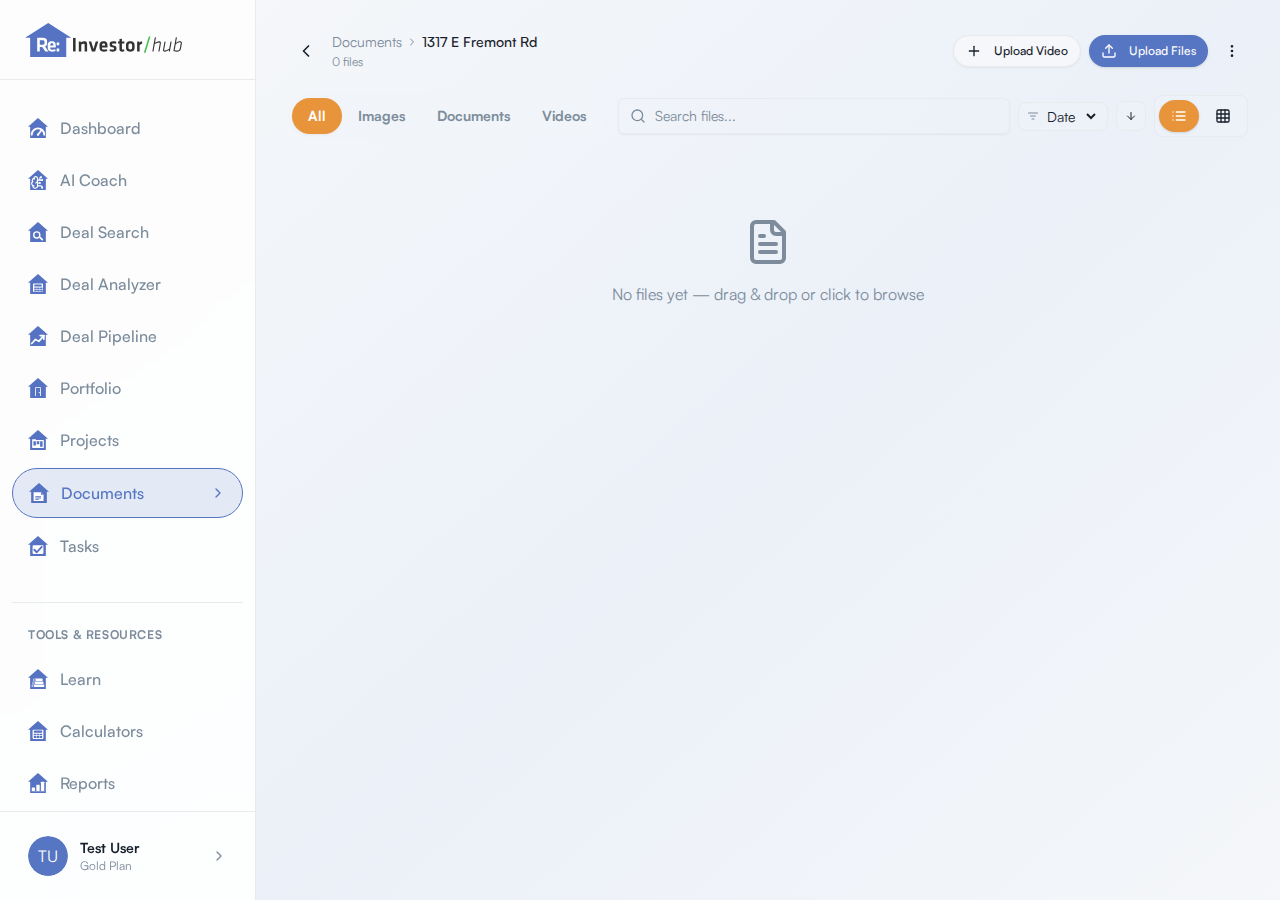
Purchase contracts, inspection reports, appraisals, title documents, and anything else that isn’t a photo go through Documents, not Deal Analyzer.
- Select Documents in the left navigation.
- Find the folder for your deal. It’s named after the property’s address (the same address on the deal’s card), and Re:InvestorHub creates it automatically when you save the deal, whether or not you’ve uploaded anything to it yet.
- Open the folder, then select Upload Files.
- Click to browse, or drag and drop. You can select more than one file at once.
There’s no restriction on file type here, images, PDFs, spreadsheets, Word documents, videos, and most other common formats are all accepted. Each file can be up to 2GB; larger files upload in the background automatically, so there’s nothing extra you need to do for a large file beyond selecting it.
For video specifically, Upload Video in the same folder gives you a dedicated upload flow with its own progress bar, also up to 2GB.
Inside a folder you can also filter by All, Images, Documents, or Videos, search by file name, sort by name, size, type, or date, and switch between a list and a grid view. Select multiple files to download or remove them together.
Add a note on your numbers
Section titled “Add a note on your numbers”For Fix & Flip and BRRRR deals, Deal Analyzer’s After Repair Value (ARV) section has an optional ARV Notes field, for documenting how you arrived at your ARV estimate (comparable sales, an appraisal, your own market analysis, and so on).
Whatever you enter there is saved with the deal. Open the deal’s details (View Details from its card menu) to read it back under a Notes heading, labeled Additional Notes.
Documents follow a deal into its renovation project
Section titled “Documents follow a deal into its renovation project”If you start a renovation project from a closed deal, the project doesn’t get a separate documents folder. It shares the deal’s folder, so anything you already uploaded to the deal, contract, inspection report, photos, is still there once it’s a project, and anything you add from the project side lands in that same folder.
The same is true for a project you link to a property instead of a deal: it shares that property’s folder. A project with neither a linked deal nor a linked property has nowhere to file documents, and Re:InvestorHub tells you so directly if you try.
Properties keep their own folder too
Section titled “Properties keep their own folder too”A property in your portfolio, independent of any deal, gets an automatically created folder the same way, and you can add photos to it from the property’s edit view the same way you would on a deal.
Storage
Section titled “Storage”The space available for everything you upload depends on your plan. See Plans and what’s included for current storage allowances.