

Change a role or remove a team member
See who is on your team, and how to change a member's role or remove them.
You can see every member of your organization and their role in Settings. Changing a role or removing a member is not something you do on that page. You ask support to do it.
See who is on your team
Section titled “See who is on your team”In the sidebar, select Settings, then select Team in the list on the page.
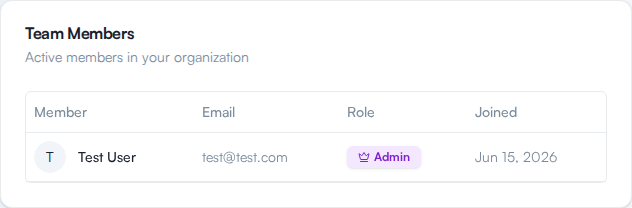
Team Members lists everyone in your organization with their Member, Email, Role and Joined date.
Change a member’s role
Section titled “Change a member’s role”The role shown in the Role column is read-only. To give someone a different role, contact support. Tell us the member’s email address and the role you want them to have: Admin, Power User or User. For what each role can do, see Roles explained.
Remove a team member
Section titled “Remove a team member”The Team Members list has no remove button, so you cannot remove a member yourself. Contact support and tell us who to remove. The organization’s Owner cannot be removed.
Once a member is removed, their seat is free for a new invitation. See Invite a team member.
If something goes wrong
Section titled “If something goes wrong”- A pending invitation has the wrong role. There is no way to edit a pending invitation. Select the Revoke icon under Pending Invitations, then send a new invitation with the right role.
- Your seats still look full. Pending invitations use a seat too. Check Pending Invitations and revoke any you no longer need.
For lookup detail, see Invite and manage team members.