

Save and manage prospects
Save properties from a search or add your own by hand, track each one with a status and priority, edit the details, and send a prospect to the Deal Analyzer.
A prospect is a property you want to look at more closely but have not analyzed yet. My Prospects is the list where you keep them, mark how far along each one is, and open the ones that are ready in the Deal Analyzer.
Save a property from a search
Section titled “Save a property from a search”In the sidebar, select Deal Search. On the Search Properties tab, search a city or address. See Search for properties if you have not done this yet.
In the results table, select Add on the property’s row. You can also select a property to open its details, then select Add to Prospects.
A property saved this way starts with the status New and the priority Medium.
Add a property by hand
Section titled “Add a property by hand”Use this for a property you found somewhere else, such as a drive-by, a mailer or a referral.
On the Search Properties or My Prospects tab, select + add manually. The Add Property Manually window opens.
Fill in Property Address, City, State (two letters, such as TX) and Property Type. These four are required. ZIP is optional.
Optionally enter List Price, Estimated Value, Bedrooms, Bathrooms, Square Feet and Owner Name (if known). Anything you leave blank stays blank.
Under Lead Source, choose where you found it: Driving for Dollars, Direct Mail, MLS, Referral, Cold Call, Wholesaler or Other.
Choose a Priority: Low, Medium, High or Urgent. Add anything worth remembering under Quick Notes.
Select Save to Prospects.
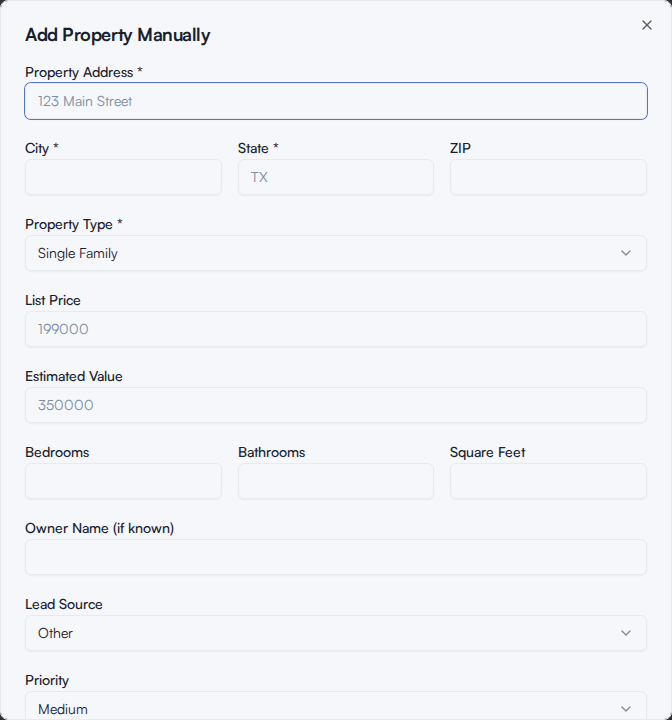
Property types you can choose are Single Family, Duplex, Triplex, Fourplex, Condo, Townhouse, Multifamily (5+ units), Land and Commercial.
Select a prospect’s address to see the property on the map.
Track a prospect with status and priority
Section titled “Track a prospect with status and priority”A status tells you how far along a prospect is. A priority tells you how much attention it deserves.
| Status | Use it when |
|---|---|
| New | You just saved it and have not looked into it. |
| Researching | You are looking up the owner, the area or the numbers. |
| Contacted | You have reached out to the owner or the seller. |
| Ready to Analyze | You have what you need to run the numbers. |
| Passed | You decided not to pursue it. |
Edit a prospect
Section titled “Edit a prospect”On the prospect’s card or table row, select the three-dot menu, then View Details. You can also select Edit straight from that menu.
The window has two tabs, Details and Edit. Select Edit.
You can change Status, Priority, Owner Name, Owner Contact (a phone number or email), List Price, Estimated Value, Lead Source and Notes.
Select Save Changes. Select Cancel to discard your edits.
The address, city and state cannot be edited. If you entered them wrong, delete the prospect and add it again.
On the Edit tab, Lead Source is a free-text box. Type any source you like, such as “Referral”, “Cold Call” or “Website”.
Send a prospect to the Deal Analyzer
Section titled “Send a prospect to the Deal Analyzer”When a prospect is ready, select Analyze Deal on its card, in its three-dot menu, or at the bottom of its details window.
Delete a prospect
Section titled “Delete a prospect”In the prospect’s three-dot menu, select Delete, then confirm with Delete Prospect.
If something goes wrong
Section titled “If something goes wrong”- The Add button is greyed out. That property is already on your prospects list.
- A prospect is missing. Check that no Status, Priority or search filter is set, and that you did not mark it Passed. If you did, set the Status filter to Passed and choose Restore from its menu.
- Save Changes shows an error. The message names the field that needs fixing. Correct it and save again.