

Choose your notifications
Turn each kind of notification on or off for the app and for email, and set the hour your task reminders arrive.
Use this when you are getting too many alerts, or not enough. You choose separately, for each kind of notification, whether it shows in the app, arrives by email, both, or neither.
Turn a notification on or off
Section titled “Turn a notification on or off”In the sidebar, select Settings. Settings is one long page of cards.
Scroll to the Notification Preferences card, titled “Choose what notifications you want to receive and how”.
Each row has two switches, In-App and Email. Switch In-App to control the notification bell. Switch Email to control email. Turn a switch on to receive it that way, and off to stop it.
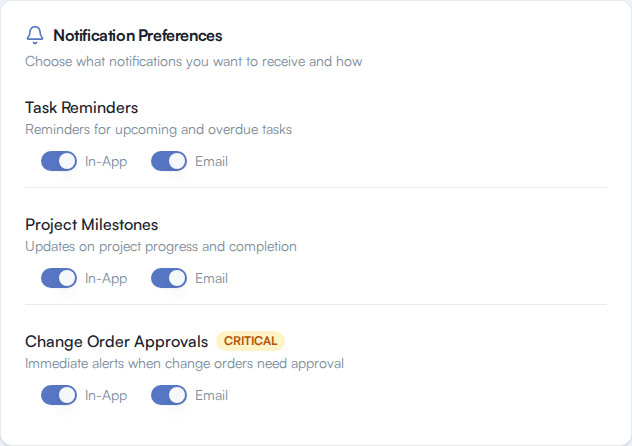
The rows are Task Reminders, Project Milestones and Change Order Approvals (marked CRITICAL). For what each one sends, see Notification settings.
Set the hour your task reminders arrive
Section titled “Set the hour your task reminders arrive”Task reminders arrive once a day at an hour you pick. You receive a reminder for the tasks you created, and only for tasks that have a due date. That setting lives in your profile, not in the notification card.
In Settings, scroll to your profile card and find Daily Reminder Time.
Pick an hour from the list, such as 9:00 AM. It uses your local timezone, so check your time zone first.
Select Save Changes.
If something goes wrong
Section titled “If something goes wrong”- The switches look greyed out. They are locked for a moment while the last change saves. Wait a second and try again.
- A message says “Failed to update preferences”. Your change did not save. Flip the switch again.
- You turned a switch off and still got a notification. Email you already received before the change is not recalled. If it keeps happening, contact support.