

Move a deal through stages
Drag deals across the Deal Pipeline board to track them from Analyzing to Closed, then start a renovation once one closes.
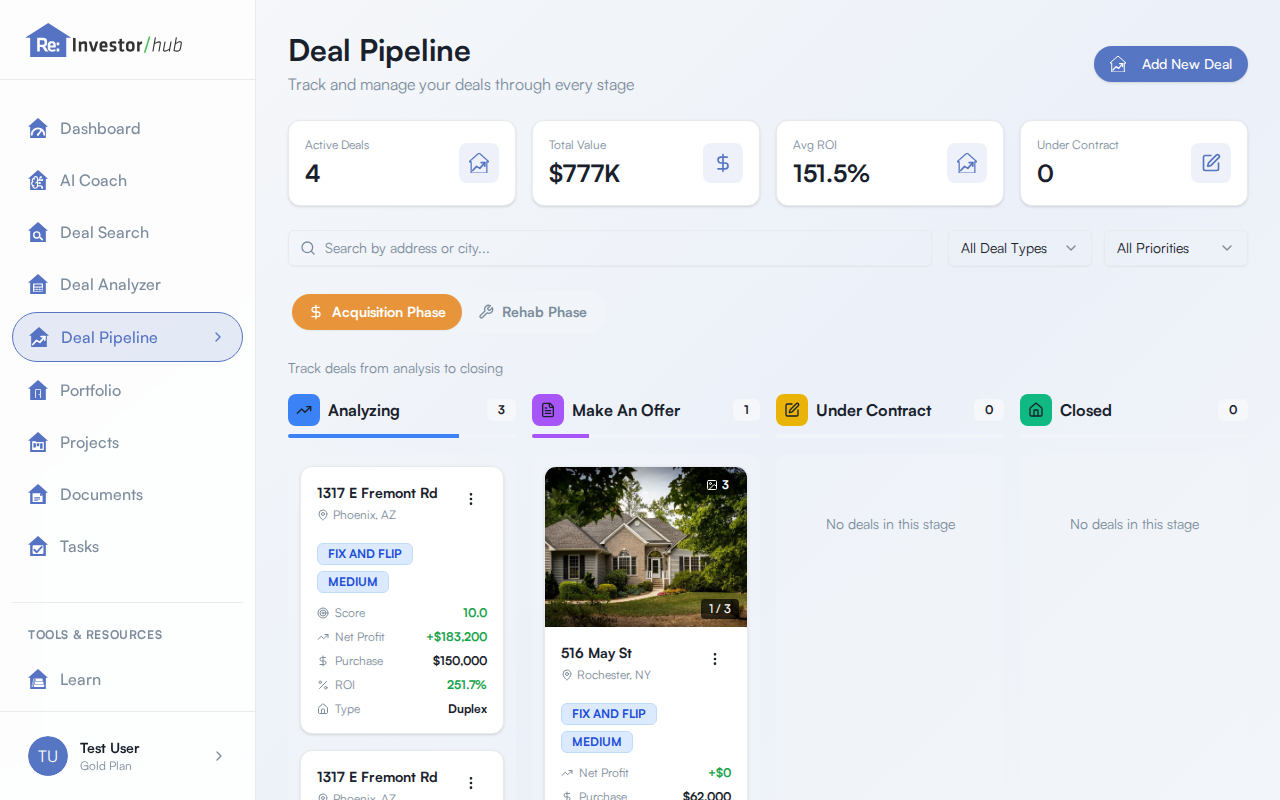
Every deal you save to your pipeline moves forward by dragging its card, not by editing a field. This walks through the Deal Pipeline board itself: the two phase tabs, dragging a card to a new stage, and starting a renovation once a deal closes.
For what each stage means, see Deal stages.
Open the Deal Pipeline board
Section titled “Open the Deal Pipeline board”- Select Deal Pipeline in the left navigation.
The board opens on the Acquisition Phase tab by default. Above the board, four stat cards summarize your pipeline: Active Deals, Total Value, Avg ROI, and Under Contract.
Below the stat cards, a pill switches between the two phases of the board:
- Acquisition Phase, covering Analyzing, Make An Offer, Under Contract, and Closed.
- Rehab Phase, covering Planning, In Progress, Completed, and Ready to List, for deals you’ve closed and started renovating.
Each column shows a count badge and the cards currently in that stage. An empty column reads No deals in this stage.
Move a deal to a new stage
Section titled “Move a deal to a new stage”- On the Acquisition Phase tab, find the deal’s card in its current column.
- Click and hold the card, drag it into the column for its new stage, and release.
You can drag a card into any of the four Acquisition Phase columns, in either direction, so moving a deal back a stage (for example, from Under Contract back to Make An Offer) works the same way.
Start rehab on a closed deal
Section titled “Start rehab on a closed deal”Once a deal reaches Closed, its card offers a next step: renovating the property. You can start rehab two ways.
From the card itself:
- Find the closed deal’s card. It shows a prompt reading Closed. Ready to renovate? with a Start rehab button.
- Click Start rehab.
From the card’s menu:
- Open the card’s menu (the three-dot icon in its top-right corner).
- Select Start Rehab.
Either way, the card moves to the Planning column on the Rehab Phase tab, which opens for you.
Starting rehab also creates the deal’s renovation project for you, named after the property and linked to the deal. Dragging a closed card directly into the Rehab Phase tab’s Planning column does the same. See Turn a deal into a project for what the new project starts with.
Once a deal is in the rehab phase, its card drops out of the Closed column on the Acquisition Phase tab and appears only on the Rehab Phase tab. The deal itself is still Closed. Only its position on the board changes.
Work the Rehab Phase board
Section titled “Work the Rehab Phase board”Once a deal has started rehab, drag its card between the Rehab Phase columns the same way you would on the Acquisition Phase board: Planning, In Progress, Completed, and Ready to List.
Dragging a rehab card back into an Acquisition Phase column (for example, back to Closed) takes it out of the rehab phase and returns it to the Closed column on the Acquisition Phase board.
What counts as an Active Deal
Section titled “What counts as an Active Deal”The Active Deals count at the top of the board includes only deals in Analyzing, Make An Offer, or Under Contract. A deal stops counting as active once it reaches Closed, even though it’s still very much part of your portfolio and now trackable on the Rehab Phase board.